Configuring Your Account
First, enter the name of your business to create its configuration. If you have multiple businesses, you can link all of them to your account independently.
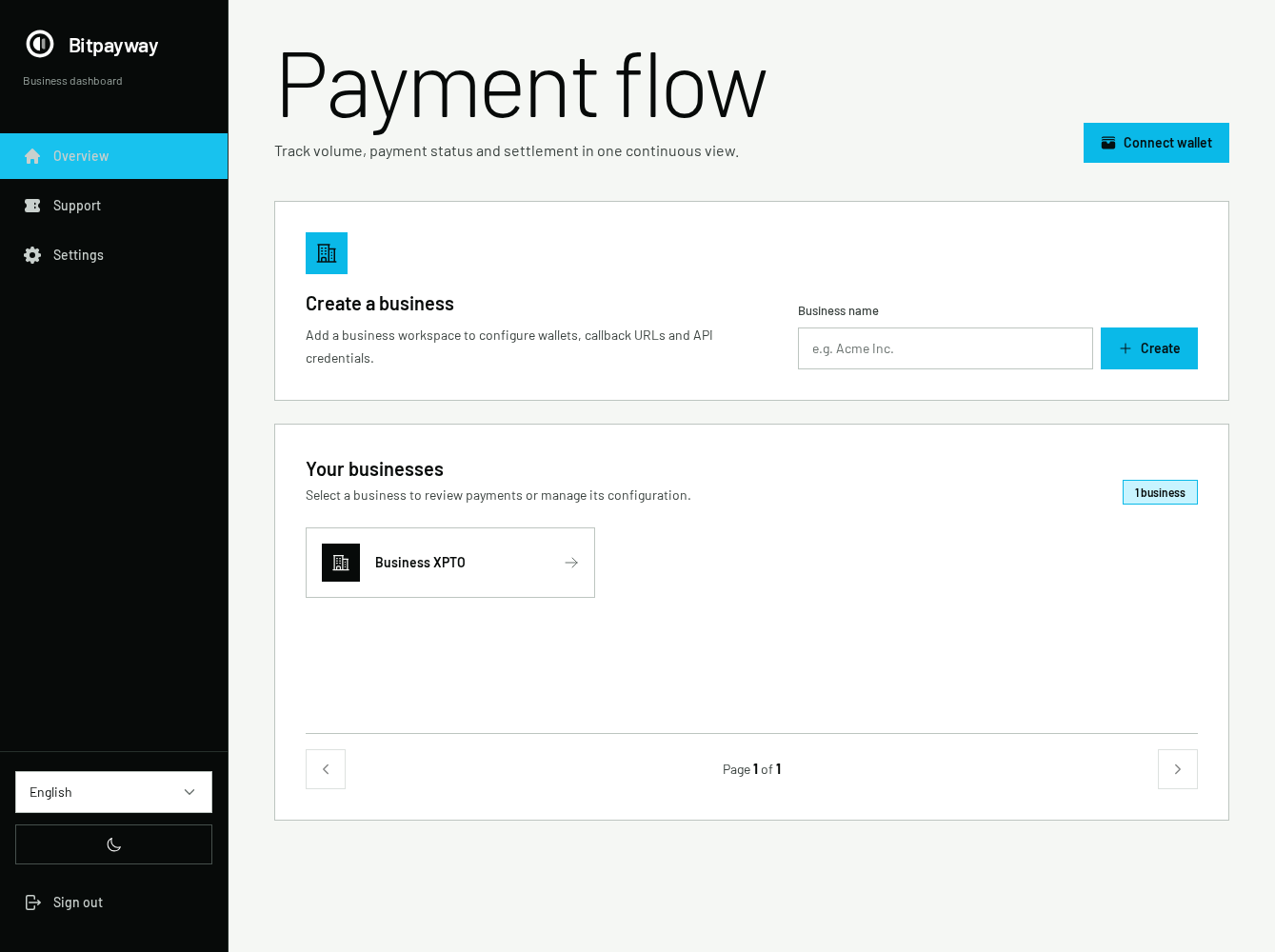
After a business is created, you'll be able to access its configuration panel.
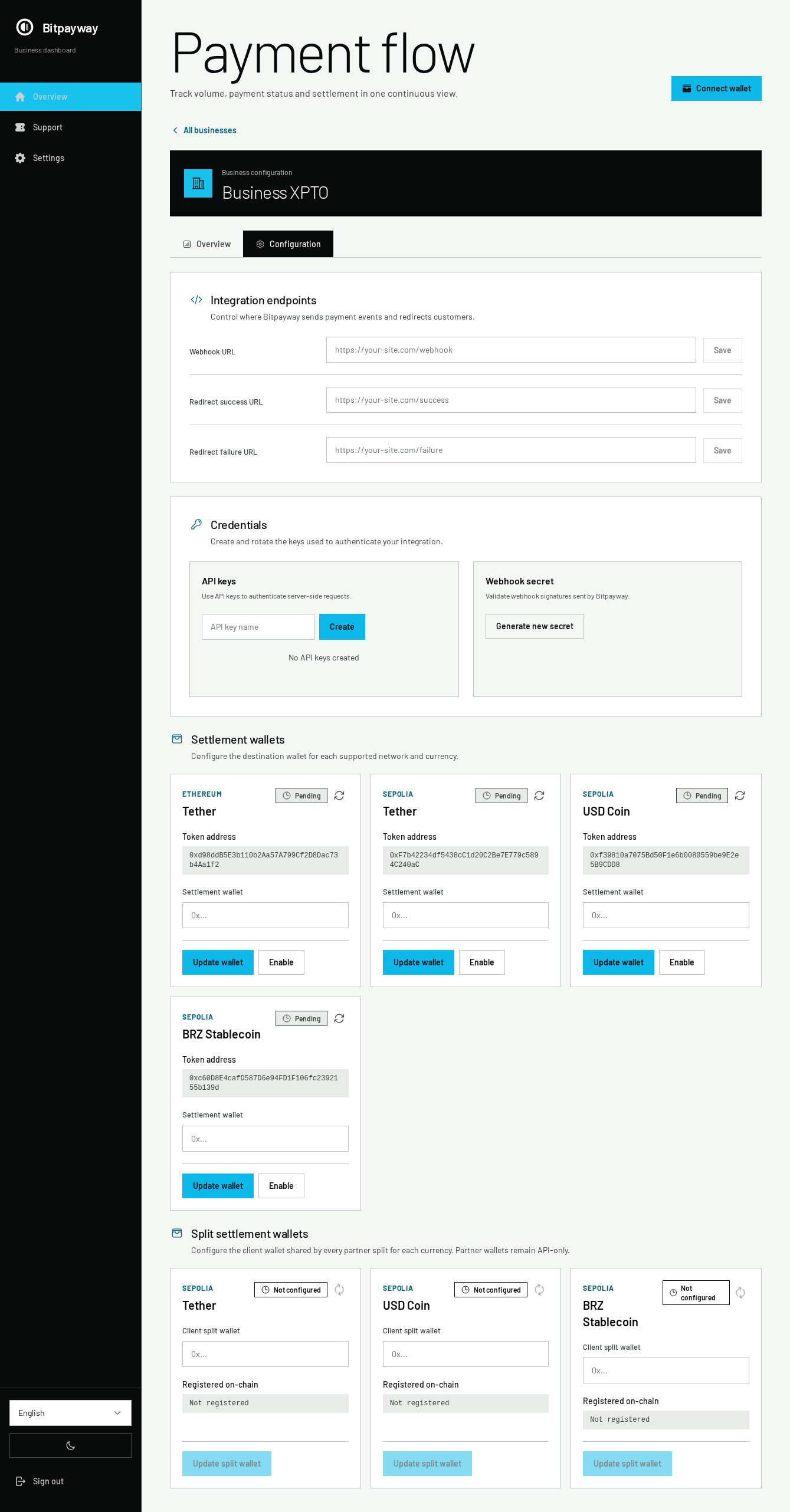
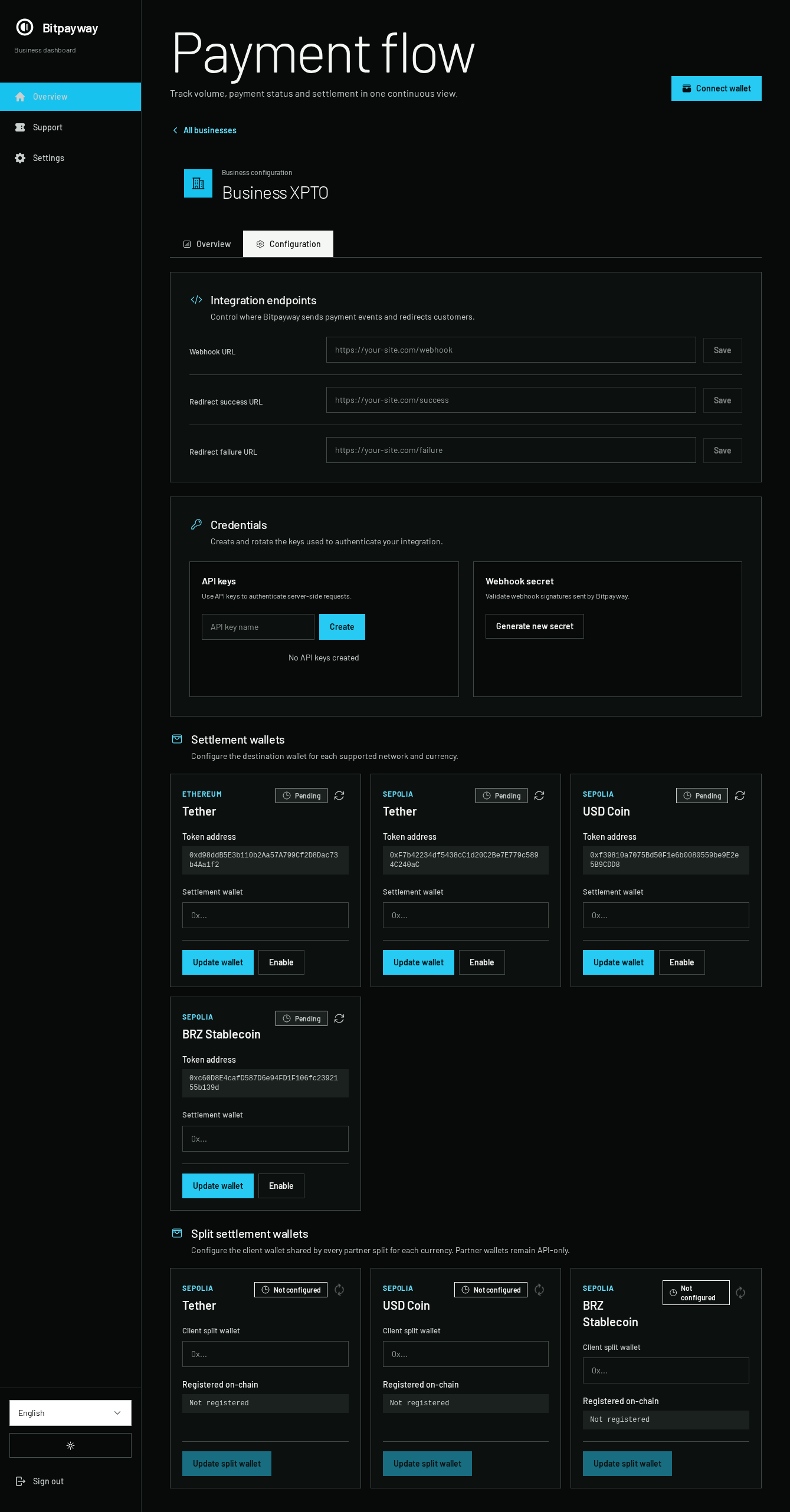
You will need to provide the following information:
-
Webhook URL: The endpoint of your application that will receive updates about the status of payment orders generated by you.
-
Redirect Success URL: The page in your application to which the browser is automatically redirected after a successful payment.
-
Redirect Failure URL: The page in your application to which the browser is redirected when a payment attempt fails. If the order has expired, the checkout displays a
Return to merchantbutton that redirects to this URL. See what the customer sees in the hosted checkout. -
Api Key: The endpoint of your application that will receive updates about the status of payment orders generated by you.
-
Webhook secret key: Generates the key used to verify the signature of the data sent by the webhook to your application. Only one key can be active at a time. When a new key is generated, the previous one becomes invalid.
-
Wallet: For each token (stablecoin) on each network, there must be a wallet address where payment amounts will be sent. You must provide the wallet address and then enable it. To enable it, you must have a wallet configured to complete the on-chain procedure: MetaMask on Ethereum and Arbitrum. It is not possible to generate payment orders using a specific token (stablecoin) unless that token has been previously enabled. After completing the setup, you can click on
Check statusto update the enablement status.
Multi-destination payments
Multi-destination payments use their own wallet registry and require an additional setup. The complete process—including the wallet model, per-token dashboard registration, API-only partner configuration, order creation, settlement and reconciliation—is consolidated in Multi-destination payments.
Redirect URL parameters
The checkout appends the payment order identifier to the configured URL as a query parameter:
| Checkout result | Configured destination | Query parameter |
|---|---|---|
| Successful payment | Redirect Success URL | request=<requestId> |
| Failed payment attempt | Redirect Failure URL | request=<requestId> |
Expired order, after the user clicks Return to merchant | Redirect Failure URL | order=<requestId> |
requestId is the same UUID that your application provided in the requestId field when it created the payment order. You can use it to match the returning user to the corresponding order in your system.
For example, if the configured URLs are https://merchant.example/payments/success and https://merchant.example/payments/failure, the browser can be redirected to:
https://merchant.example/payments/success?request=2f3c9d2c-1b75-4e9d-9b2f-67d0a9c3c7d1
https://merchant.example/payments/failure?request=2f3c9d2c-1b75-4e9d-9b2f-67d0a9c3c7d1
https://merchant.example/payments/failure?order=2f3c9d2c-1b75-4e9d-9b2f-67d0a9c3c7d1
Configure these fields with base URLs that do not already contain a query string or fragment. The checkout performs a browser redirect and does not send a request body or a payment status parameter. Use the webhook to confirm the payment status securely on your server; do not treat the browser redirect alone as proof of payment.
Deleting a business
To delete a business, open its Configuration tab, click Delete business and type the business name to confirm. Deletion cannot be undone:
- The business no longer appears in your account.
- Its API keys are revoked, so requests authenticated with them are rejected and no new payment orders can be created.
- Payment orders created before the deletion keep working: customers can still pay them in the checkout, and your webhook URL still receives their status updates.