Hosted checkout
The checkout is the Bitpayway payment page where your customer pays a payment
order. You do not need to build a payment screen: create the order through the
API, redirect the customer to the gatewayUrl returned for it, and
the checkout handles the wallet connection, the on-chain transfer and the return
to your site.
How it works
- Your server creates a payment order with
POST /api/order. The response containsgatewayUrl, the address of the order's checkout. - Your application redirects the customer to
gatewayUrl. - The customer reviews the order, connects a wallet and confirms the payment.
- The checkout follows the network confirmation and redirects the customer to your Redirect Success URL.
- Your server receives the webhook with the
paidstatus.
Redirecting the customer to the checkout
Use gatewayUrl exactly as the API returns it. The link identifies the order
through the id query parameter:
https://pay.example.com/?id=7f7f5a2a-5c4f-4c6b-9cbb-1f0f4b4e42f2
- The customer can pay while the order accepts payments: 30 minutes after it is created. After that, the link shows the order as expired.
- Anyone with the link can see the order description, amount and request ID.
Do not put personal or sensitive data in the order
description, because it is shown to the customer as the order title. - A link without the
idparameter shows Invalid payment link, and an unknownidshows Payment not found.
What the customer needs
- A supported wallet: MetaMask, Coinbase Wallet or Binance Wallet. Coinbase Wallet can also be used from a mobile phone.
- The order token on the order network, such as USDT on Ethereum or USDC on Arbitrum. See the supported assets and networks.
- ETH on the same network to pay the network fees (gas) of the wallet transactions.
Step by step
1. Review the order
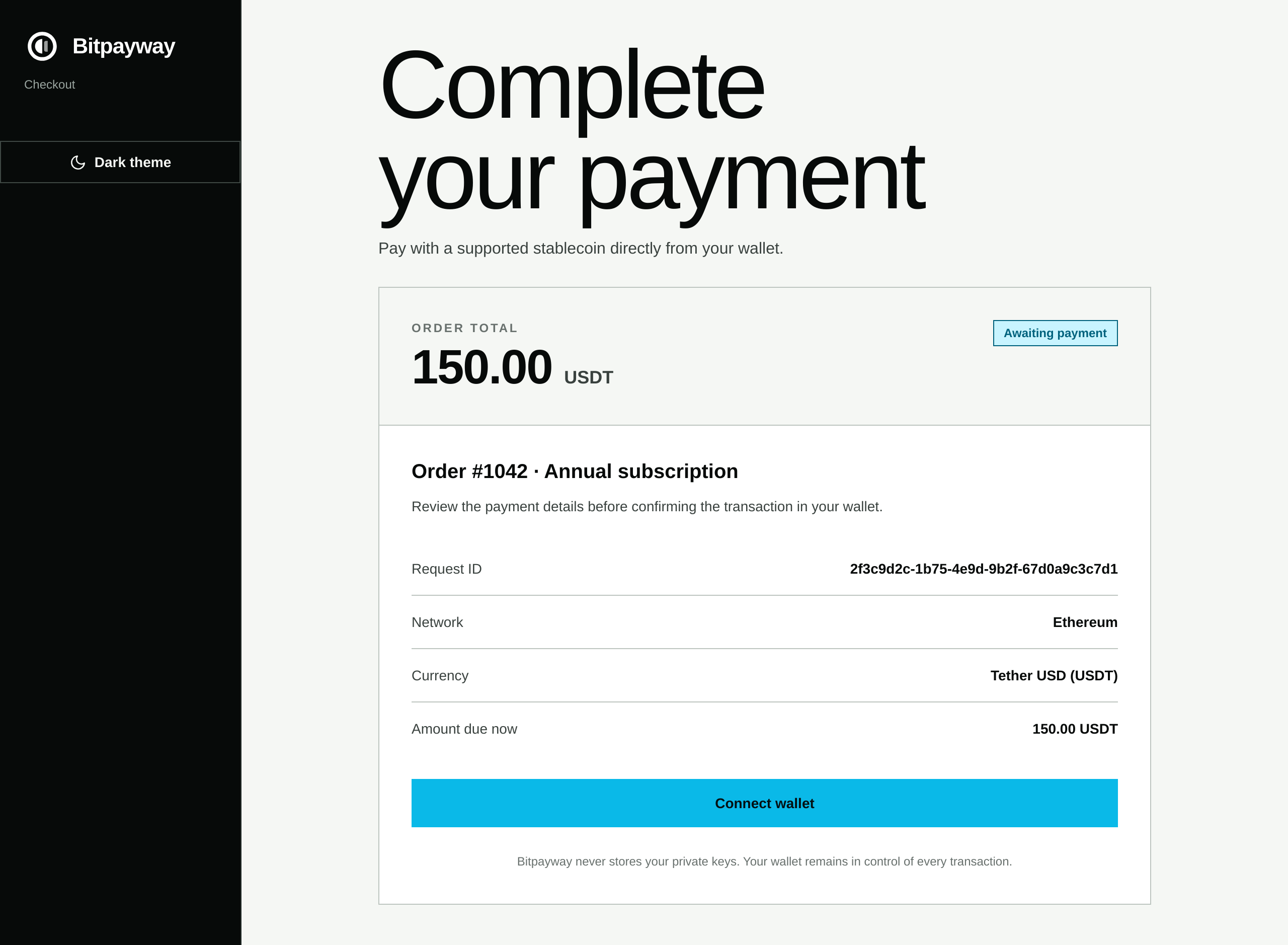
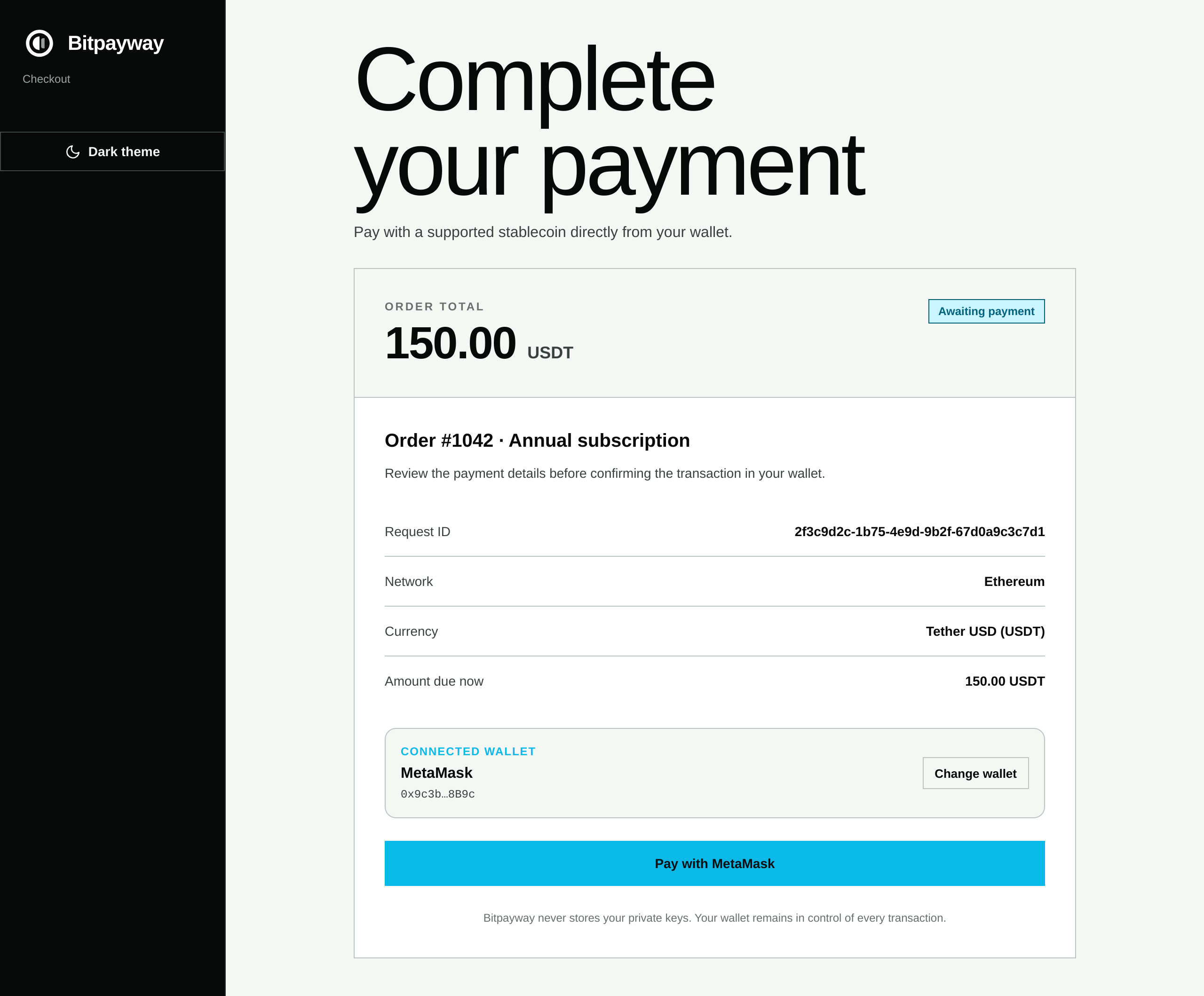
The checkout opens with the order summary:
- Order total: the full amount of the order and its token.
- Status: the current state of the order, such as
Awaiting payment. - Title: the
descriptionyou sent when you created the order. - Request ID: the
requestIdyou sent, so the customer can match the payment to their purchase. - Network and Currency: where and with which token the order is paid.
- Amount due now: what the customer will transfer. It equals the order total, unless part of the order was already paid (see partial payments).
2. Connect a wallet
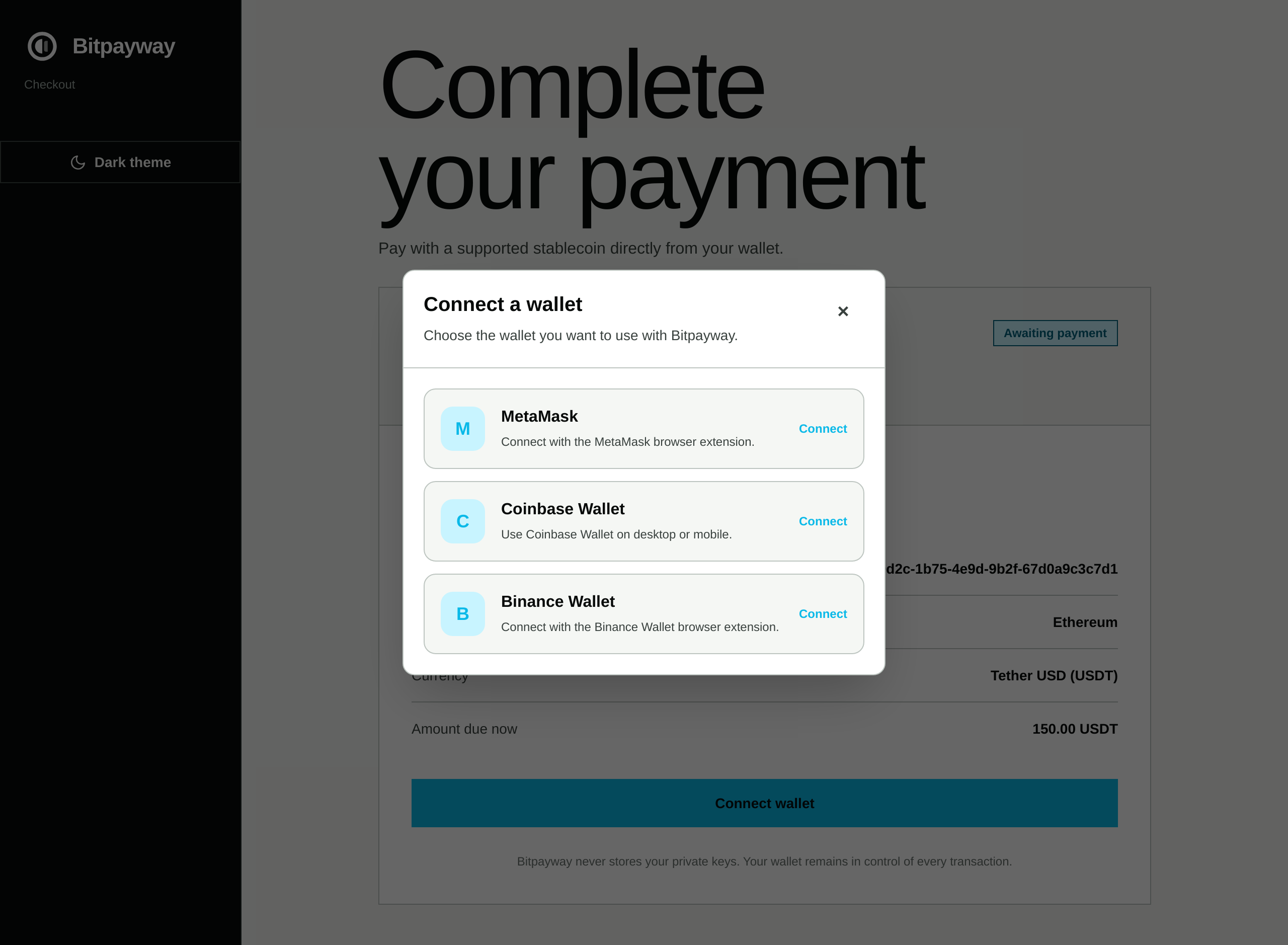
The customer clicks Connect wallet and chooses a wallet. The wallet then asks
the customer to allow the connection.
3. Pay
With the wallet connected, the checkout shows its name and address. The customer
can use Change wallet to pick another one, or click Pay with <wallet> to
start the payment.
When the payment starts, the checkout asks the wallet to switch to the order network if it is on another one. Then the customer confirms the transactions in the wallet:
- Approval: authorizes the Bitpayway payment contract to transfer exactly the amount due. It is skipped when the wallet has already approved at least that amount. If a smaller approval exists, the wallet first asks to reset it to zero, as required by tokens such as USDT.
- Payment: transfers the amount due to the payment contract, which sends it to your settlement wallet in the same transaction.
Bitpayway never asks for private keys or recovery phrases. Every transaction is reviewed and signed in the customer's own wallet.
4. Wait for the confirmation
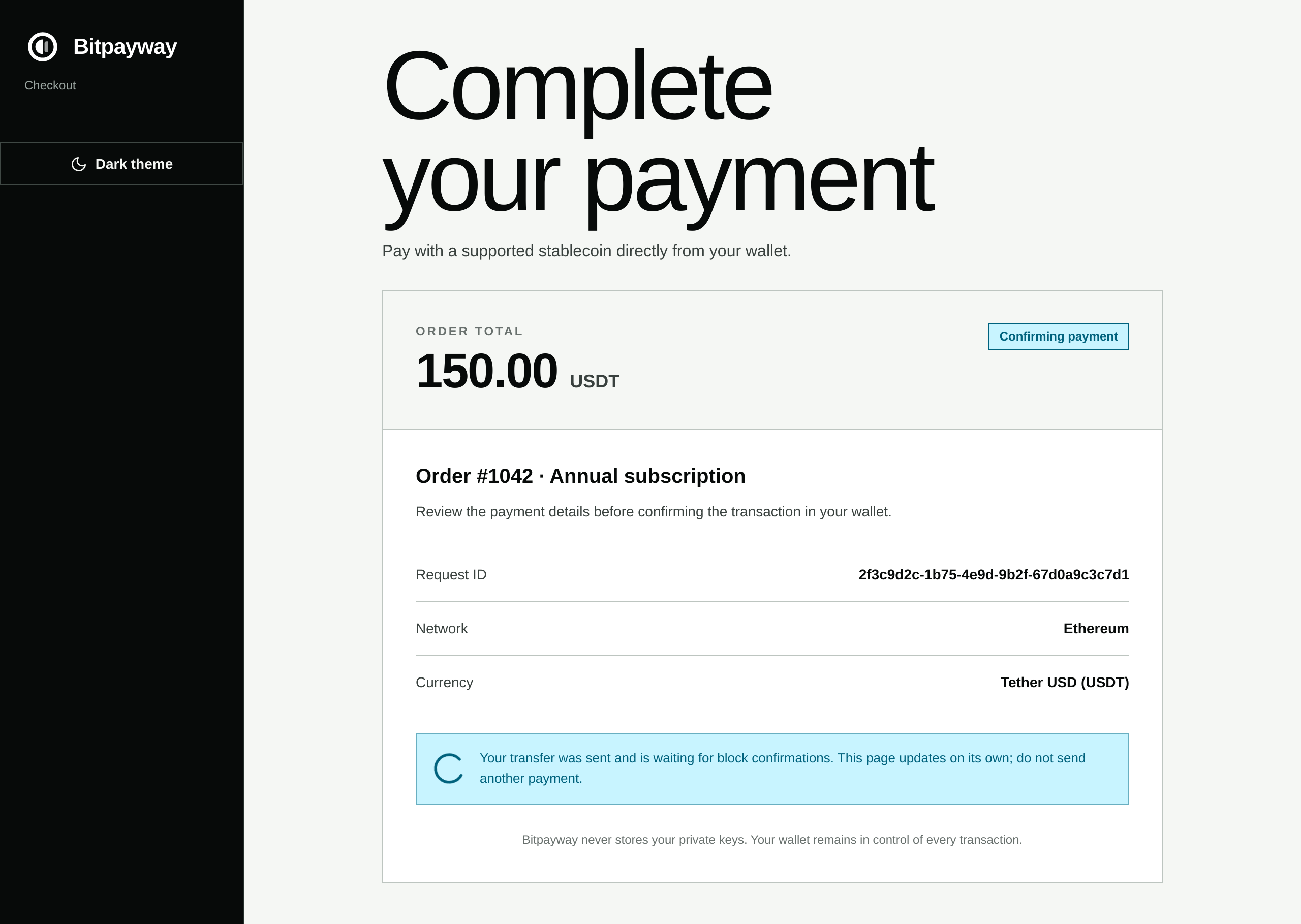
After the transfer is sent, the status changes to Confirming payment while the
network confirms the transaction. The page updates on its own, and the customer
must not send another payment.
5. Return to your site
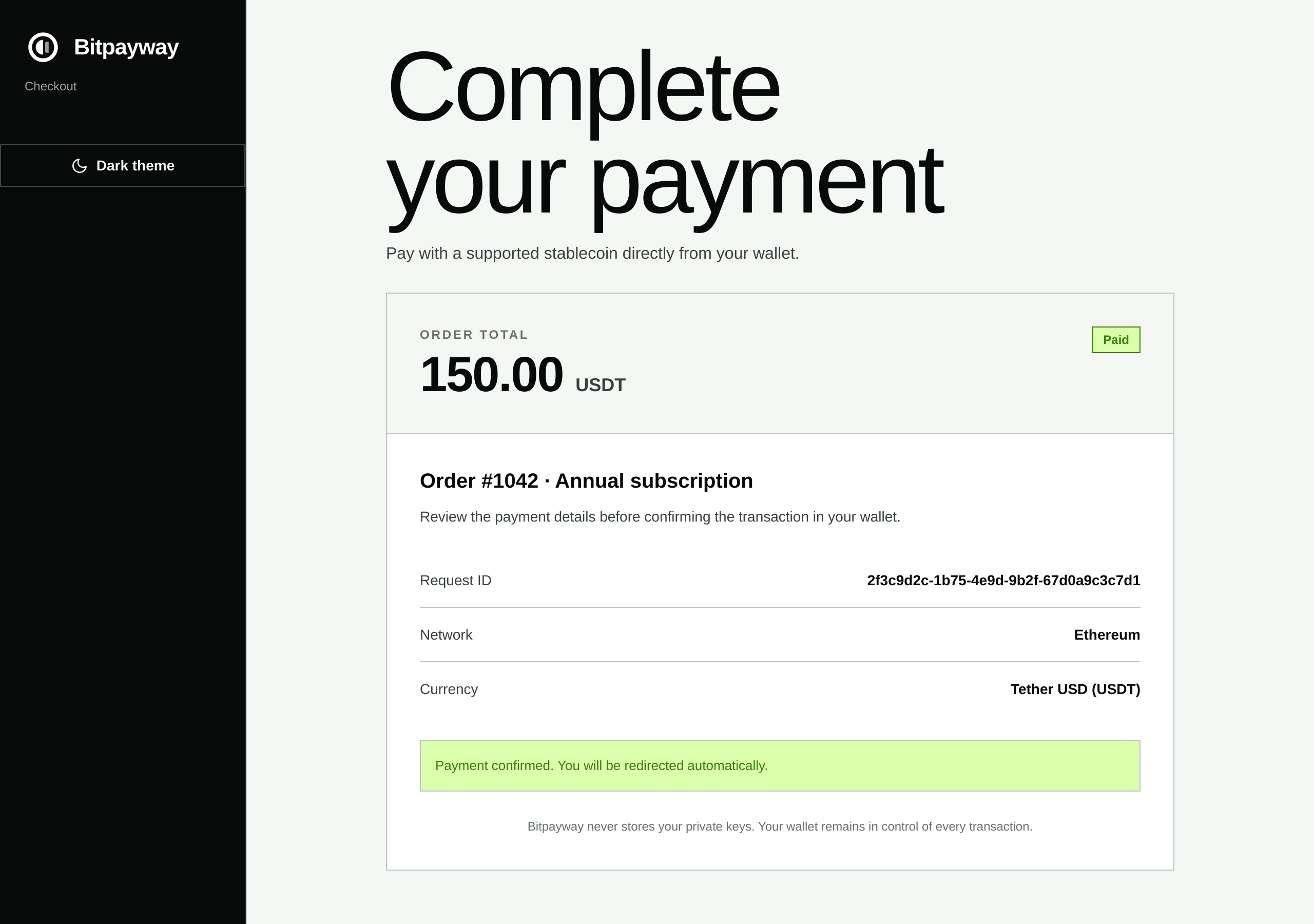
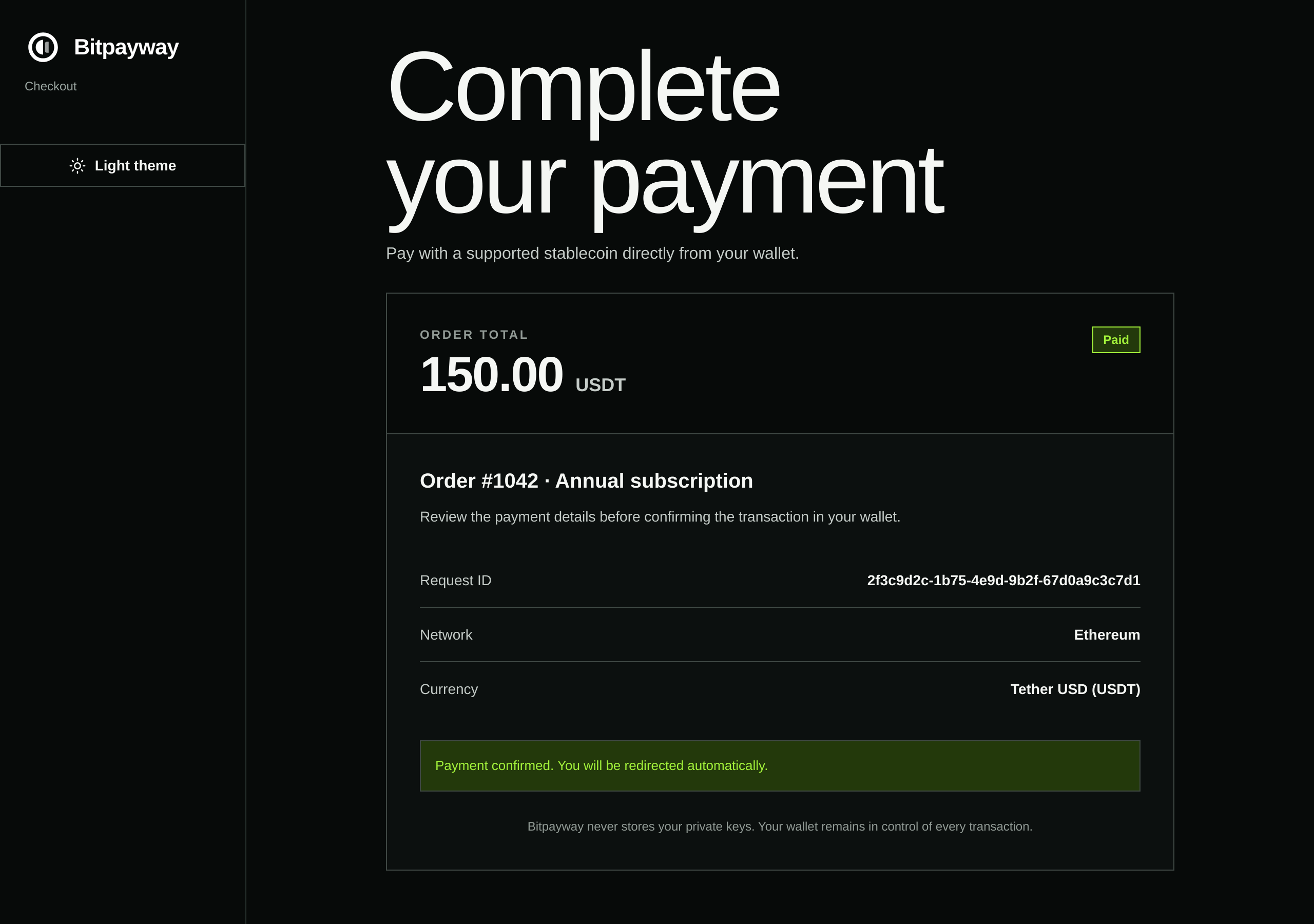
Once the payment is confirmed, the status changes to Paid and, about two
seconds later, the browser is redirected to your Redirect Success URL with
?request=<requestId>. If you did not configure that URL, the customer stays on
the checkout.
The redirect only guides the customer back to your site. Confirm the payment on your server with the webhook or by querying the order, never with the redirect alone. The redirect parameters are described in Account setup.
When the payment is not completed
Failed attempt
If the customer rejects a transaction in the wallet, or the transaction fails,
the browser is redirected to your Redirect Failure URL with
?request=<requestId>. A failed attempt does not close the order: while it has
not expired, the customer can open the same gatewayUrl and pay.
The customer stays on the checkout, with a Try payment again button, when you
did not configure a Redirect Failure URL or when the order is a
multi-destination payment.
Expired or canceled order
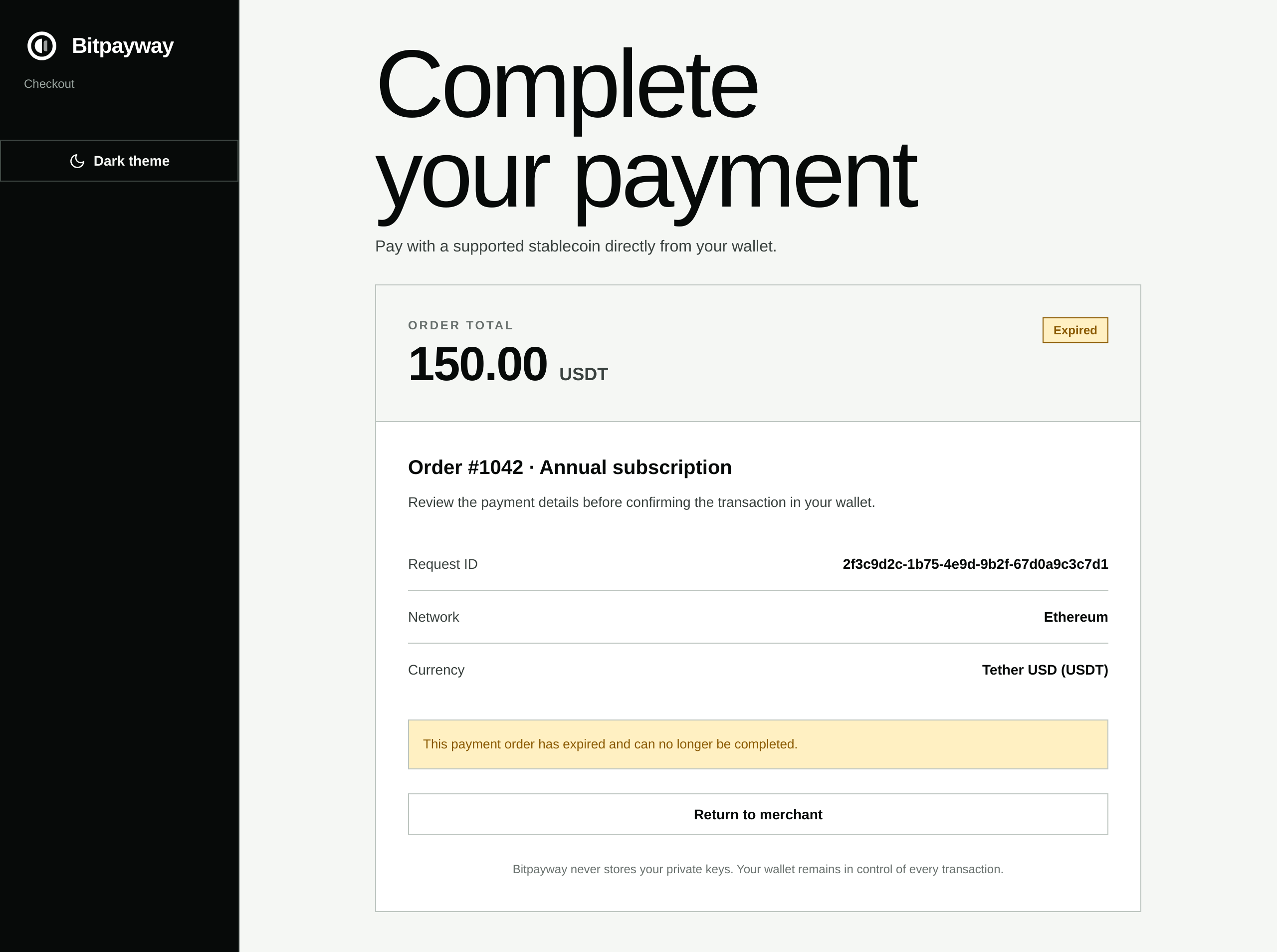
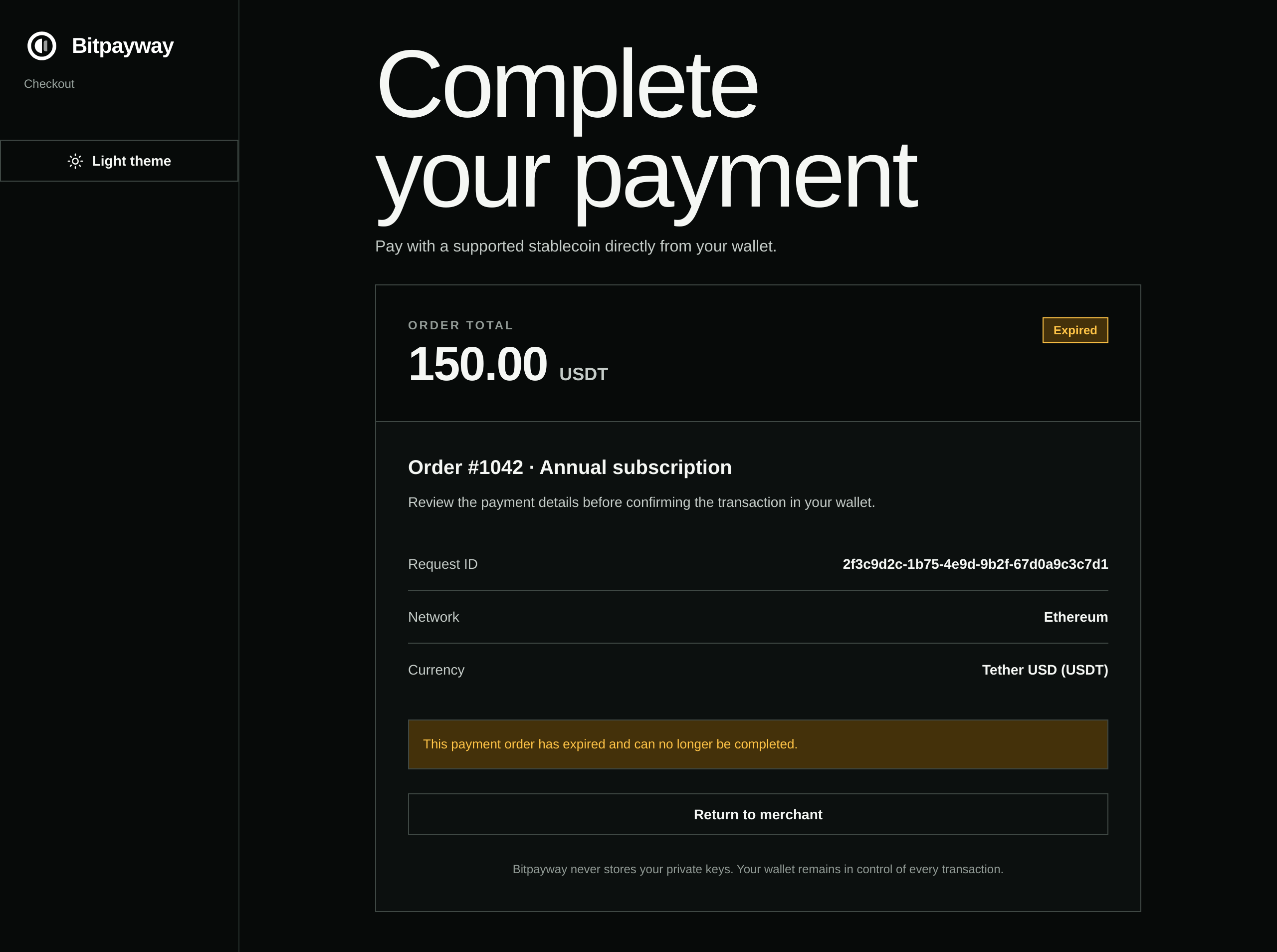
An expired or canceled order can no longer be paid. The checkout shows a
Return to merchant button that takes the customer to your Redirect Failure
URL with ?order=<requestId>. To charge the customer again, create a new
order.
Partial payments
If part of the order was already paid, Amount due now shows only the open balance, and that is the amount the wallet is asked to transfer. Order total keeps showing the full amount of the order.
Multi-destination payments
For a multi-destination payment, the customer sees the same checkout: the order total and the amount due. How the payment is divided between you and your partner is not shown.
The customer cannot pay from a wallet that receives part of the order, either yours or your partner's. The checkout refuses the payment and asks for another wallet.
Statuses shown in the checkout
| Checkout status | When it appears | What the customer does |
|---|---|---|
Awaiting payment | The order is pending or partial paid. | Connects a wallet and pays the amount due. |
Confirming payment | The transfer was sent and waits for block confirmations (paid waiting confirmations). | Waits on the page. Must not pay again. |
Paid | The order is paid. | Is redirected to your Redirect Success URL. |
Payment failed | The wallet rejected the transaction or it failed. | Is redirected to your Redirect Failure URL, or tries again on the checkout (see Failed attempt). |
Expired | The order is expired or expired partial paid. | Returns to your site with Return to merchant. |
Canceled | The order is canceled. | Returns to your site with Return to merchant. |
Action required | The transfer was confirmed, but the checkout could not register it with Bitpayway. | Clicks Retry notification. Must not pay again. |
Under review | A multi-destination order received amounts that differ from the agreed division (settlementStatus: mismatch). | Waits for your review. Must not pay again. |
Payment under review | Bitpayway could not verify the order yet and retries automatically. | Waits. Must not pay again. |
Manual review required | Bitpayway could not verify the order automatically. | Must not pay again and should contact you. Send the order id to Bitpayway support. |
Light and dark themes
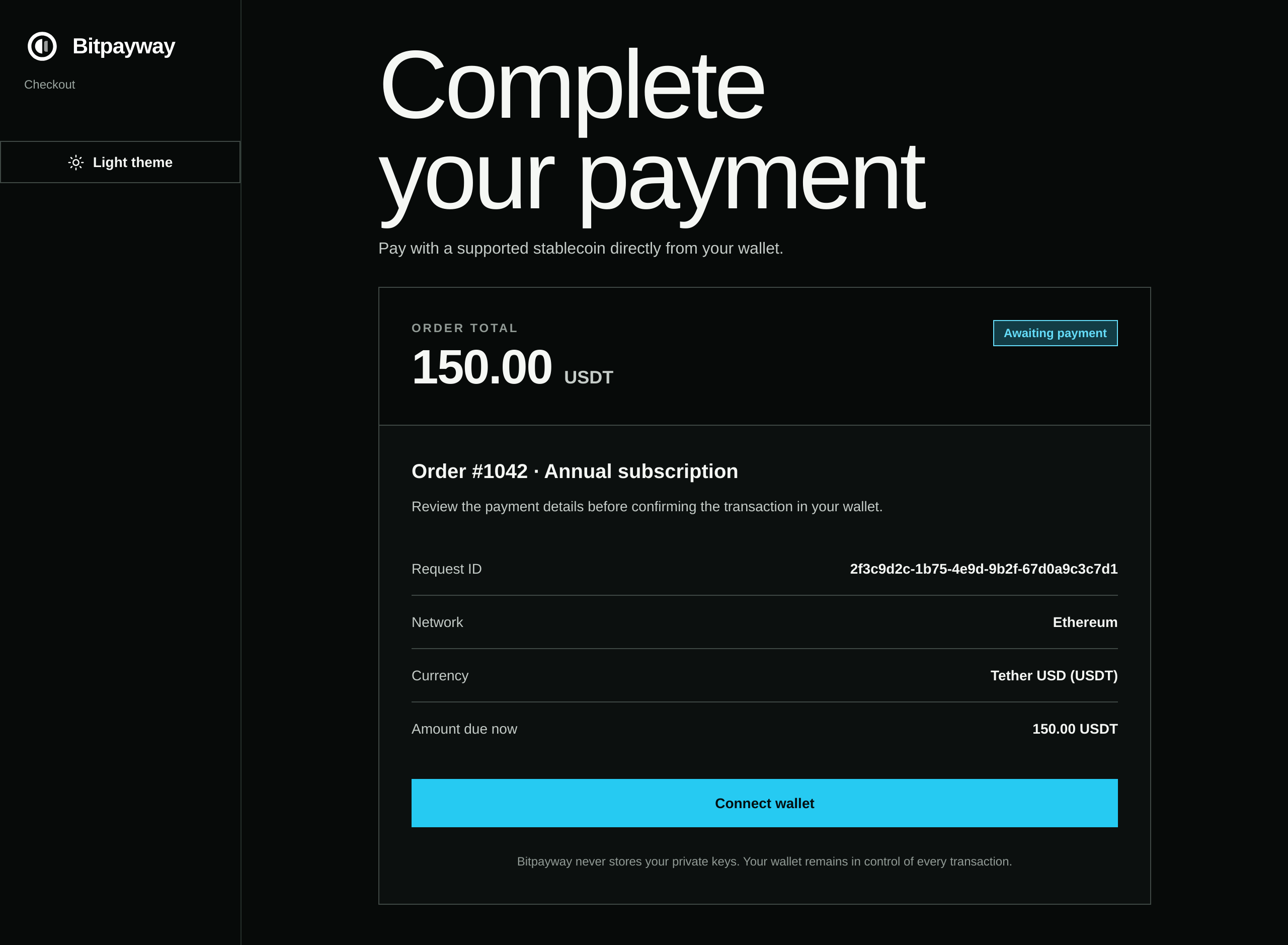
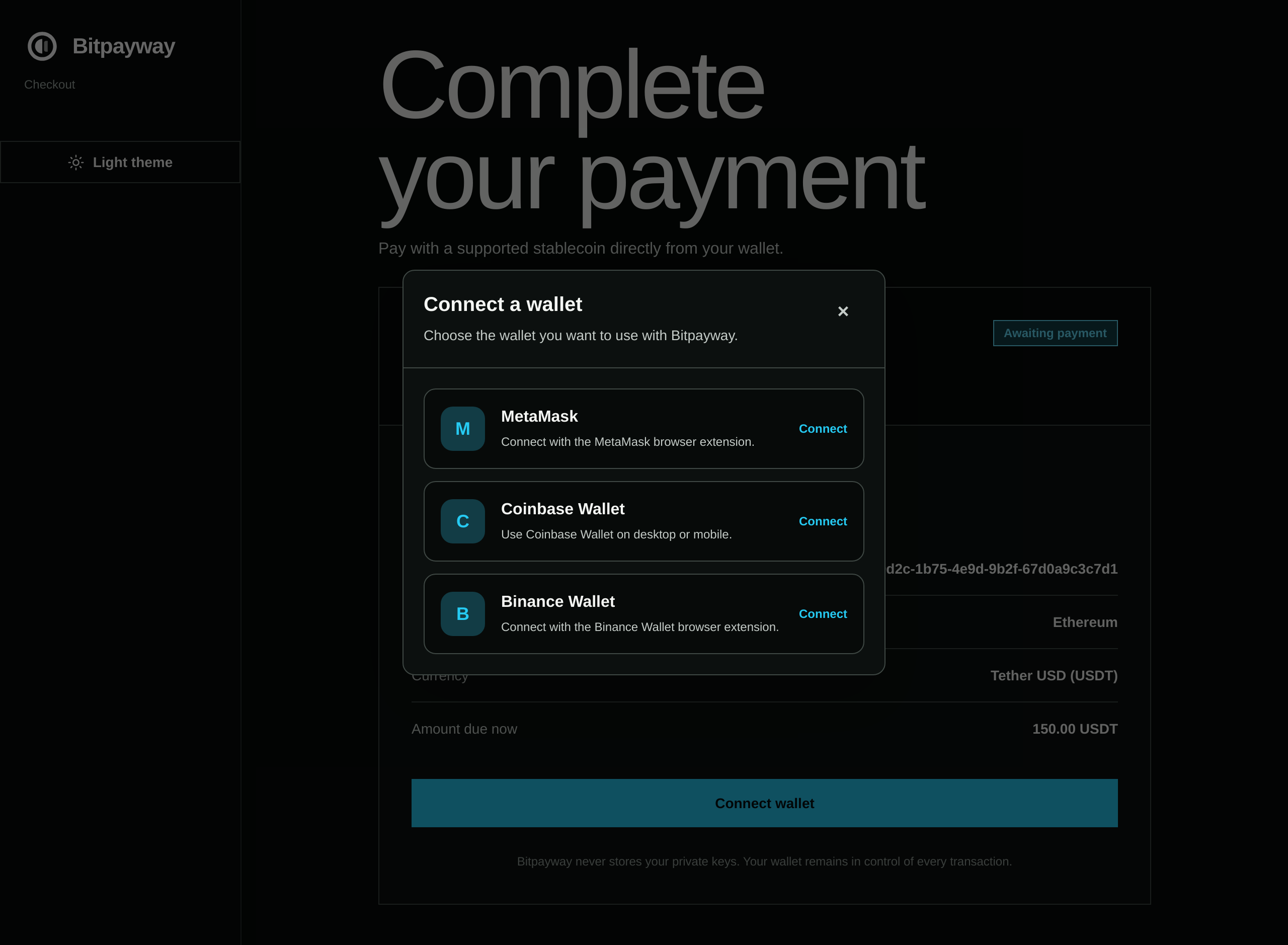
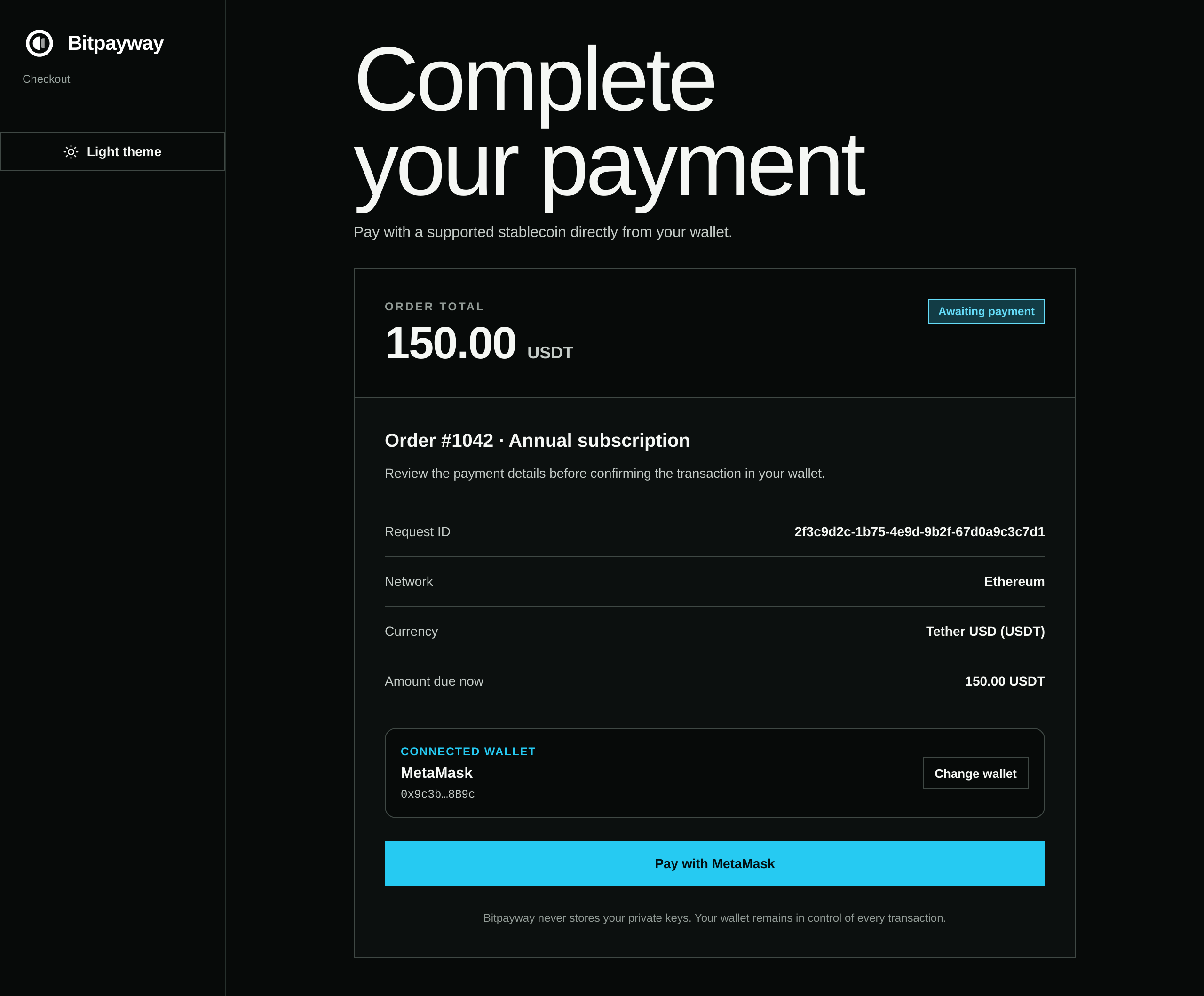
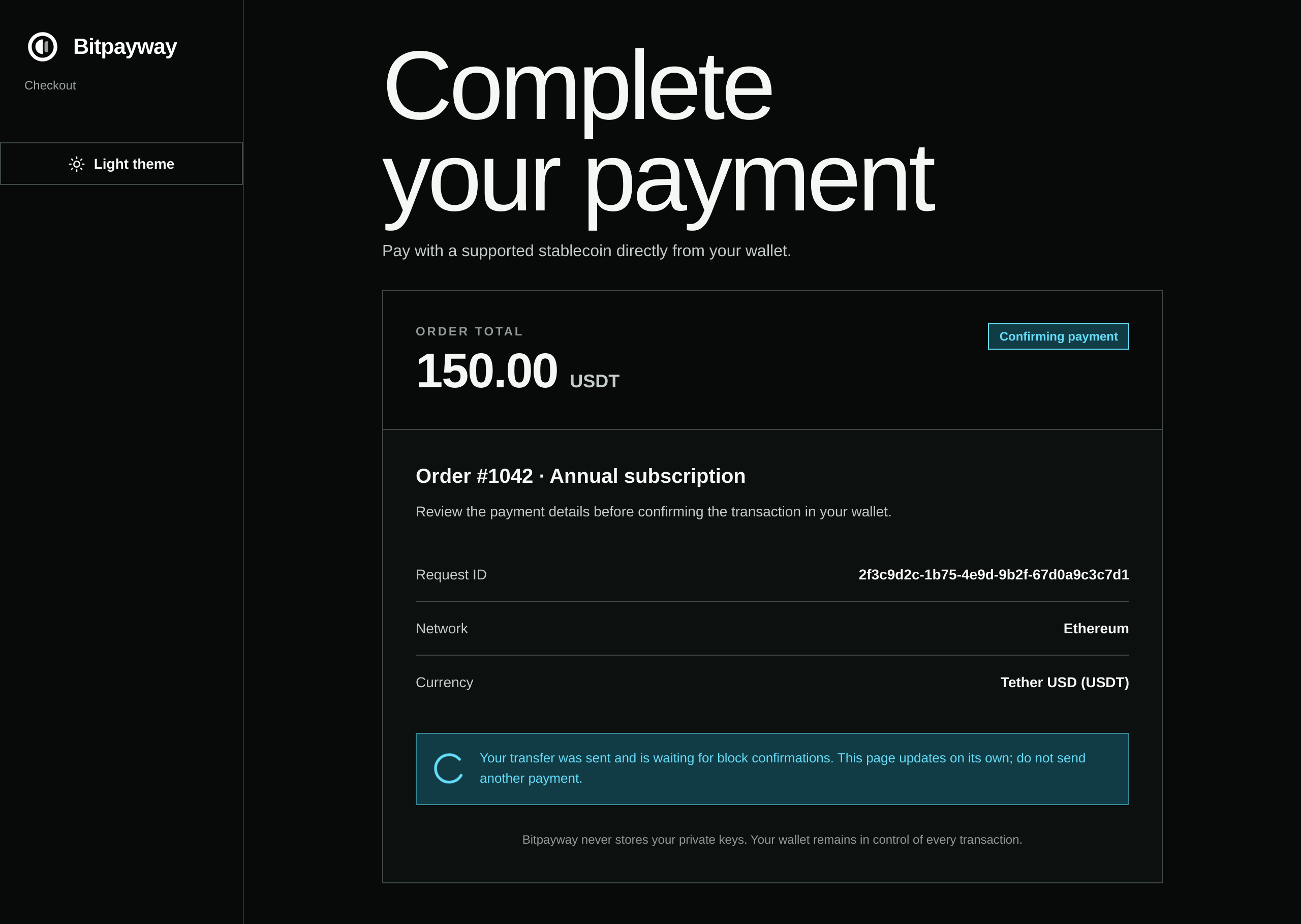
The checkout follows the theme of the customer's device. The customer can switch between the light and dark themes with the button in the side menu.